Skip to content
Black Friday · Get up to 88% discount Get the deal →

Sunrise · CopVPN for iOS

Download a VPN for iPhone and iPad

CopVPN is a VPN for iPhone and iPad: one app on the App Store, for iOS or iPadOS 16 or later, with 5 protocols, “Block ads, trackers & malware” and auto-connect on untrusted Wi-Fi. Install it, sign in without a password and connect to the free locations, no plan needed.

  • iPhoneiOS 16 or later
  • iPadiPadOS 16 or later
  • VersionLatest
  • Without a planFree locations
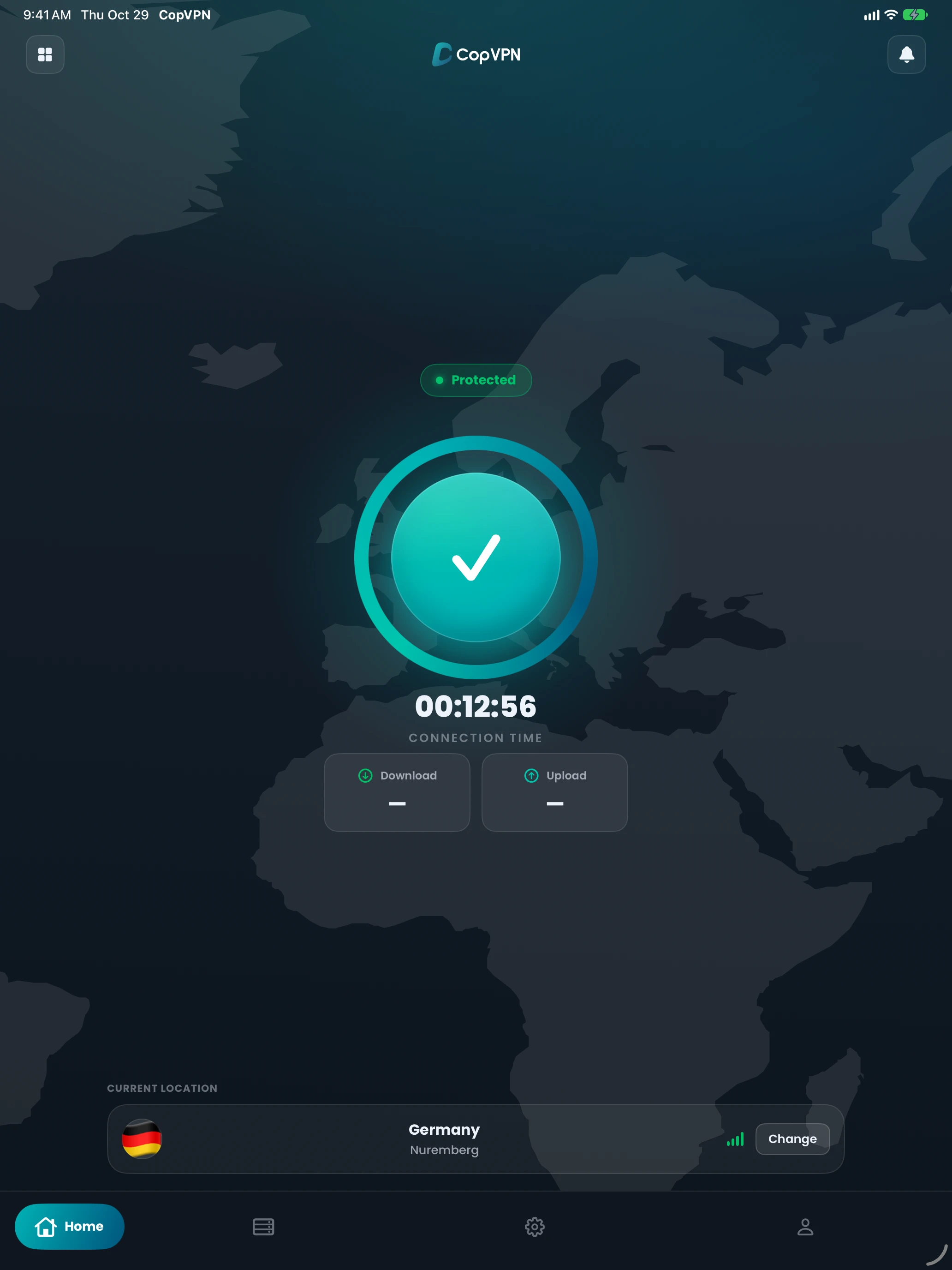
The CopVPN iPad app, connected: the Home screen with a check mark and the connection time
iPad
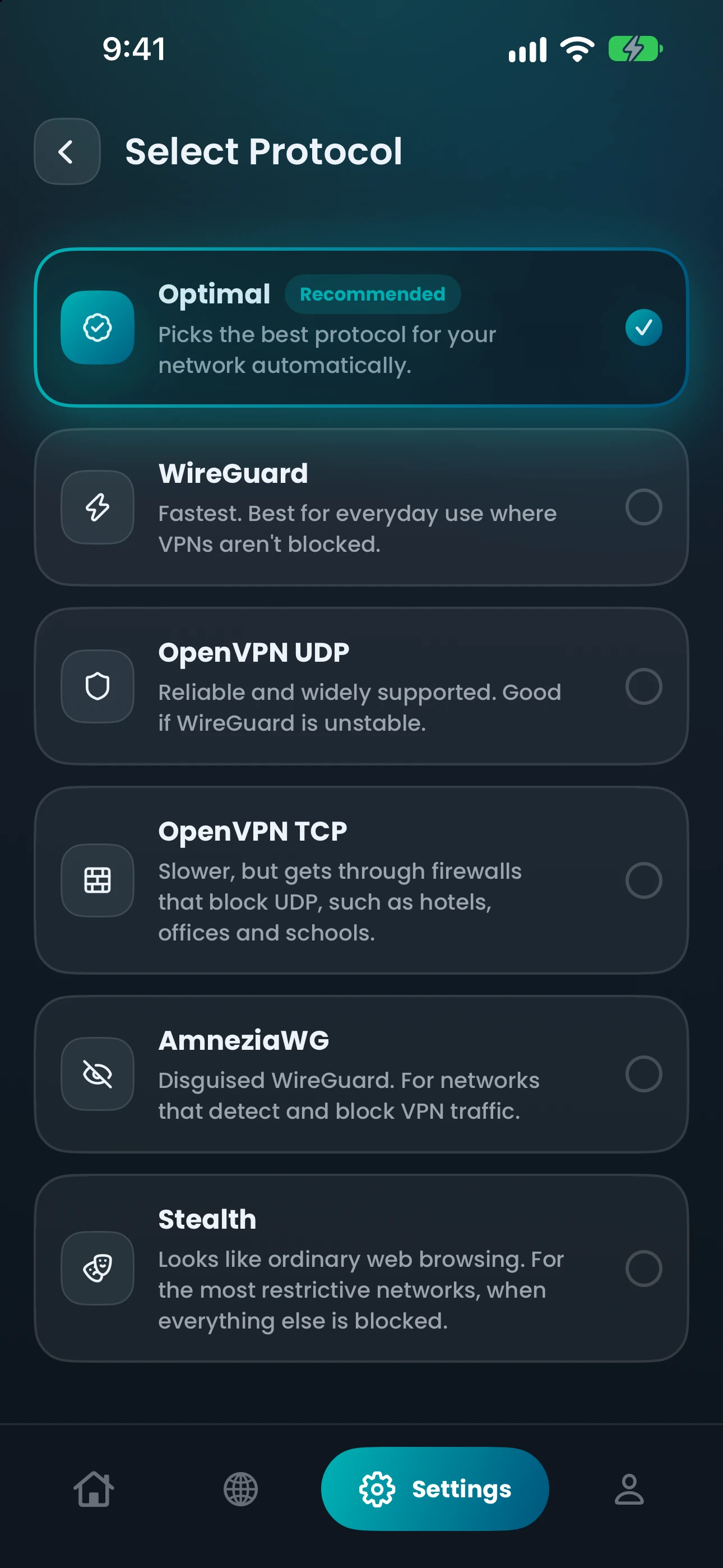
The CopVPN iPhone app’s protocol list: Optimal, WireGuard, OpenVPN UDP, OpenVPN TCP, AmneziaWG and Stealth
iPhone

One day, two screens

A day with the iPhone VPN app, and the iPad when you sit down

Pick a moment. The sun moves, the device in your hand changes, and the real CopVPN screen shows the setting that handles it, in the app’s own words.

07:30On the trainOn iPhone

The signal drops between stations

Kill SwitchBlocks the internet if the VPN drops

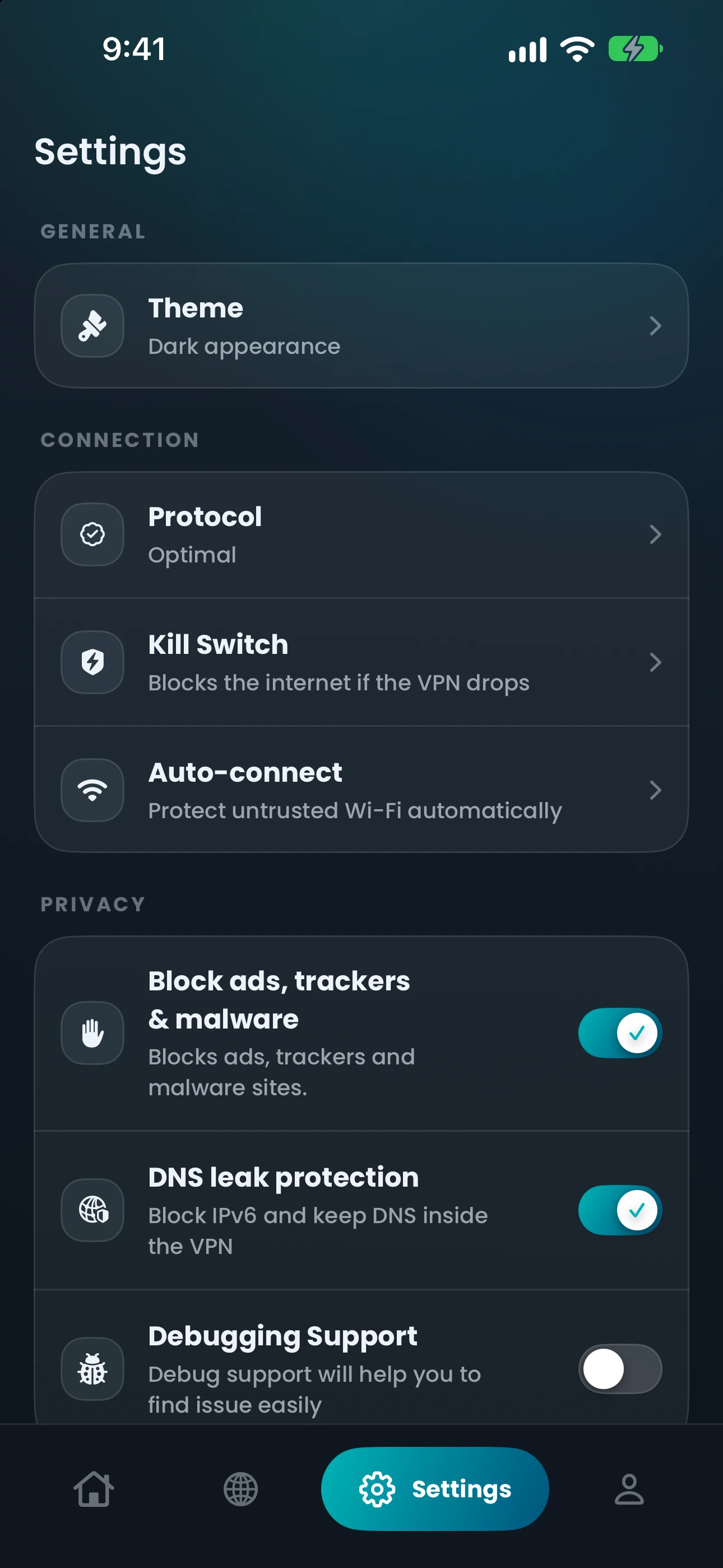
If the VPN drops, Kill Switch stops your traffic leaving outside the tunnel. It’s off until you turn it on. On iPad the switch is “Kill switch”: “Block traffic if the VPN drops”.

AvailableHow the kill switch works

09:30Café Wi-FiOn iPad

Open Wi-Fi you didn’t set up

Auto-connectConnect when joining an untrusted network

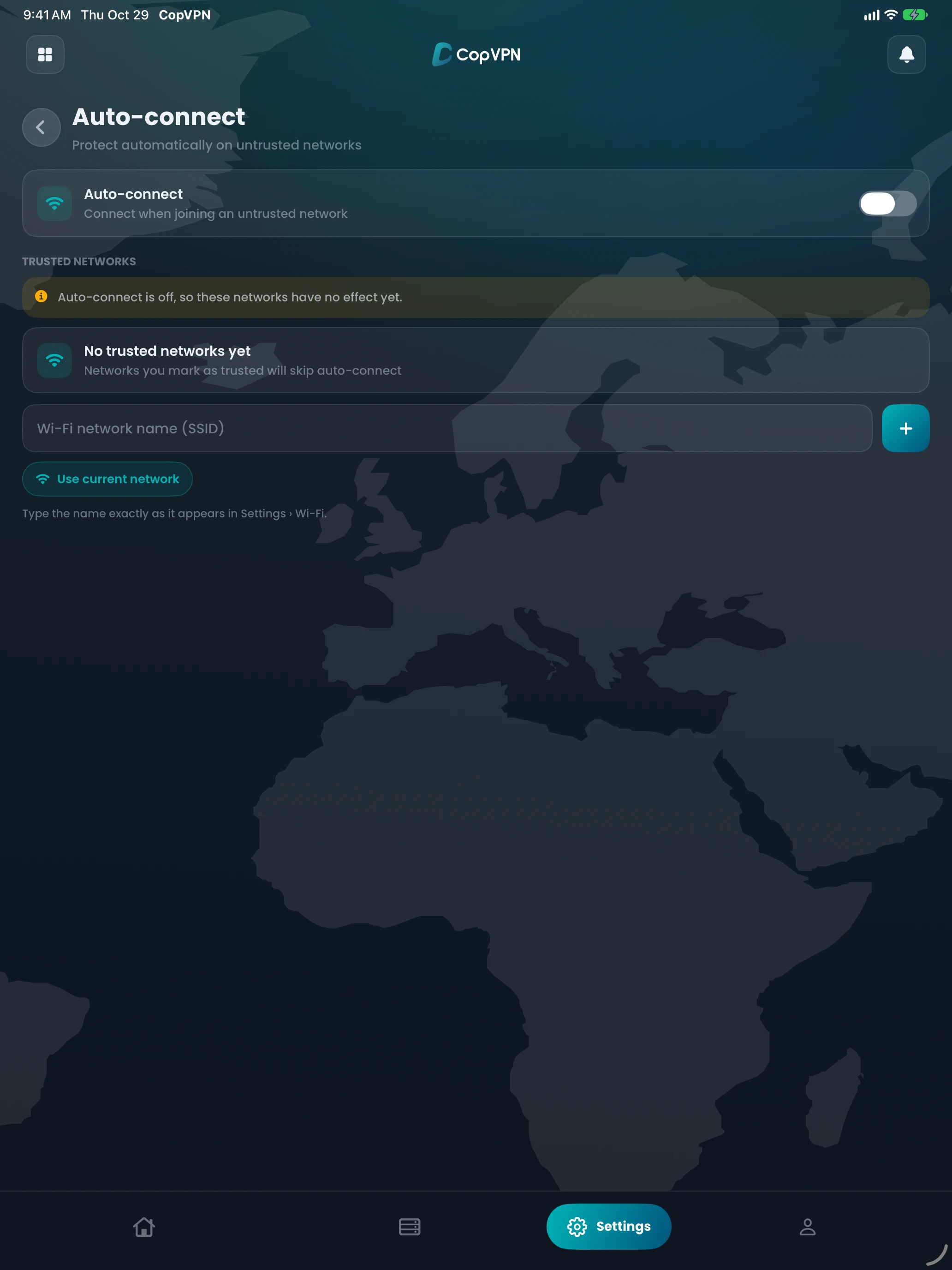
You choose whether it’s on. With Auto-connect on, CopVPN connects when your iPad joins a network you haven’t marked as trusted. On iPhone the line reads “Protect untrusted Wi-Fi automatically”.

AvailableTurn on auto-connect

12:30Office or campusOn iPad

A firewall that blocks UDP

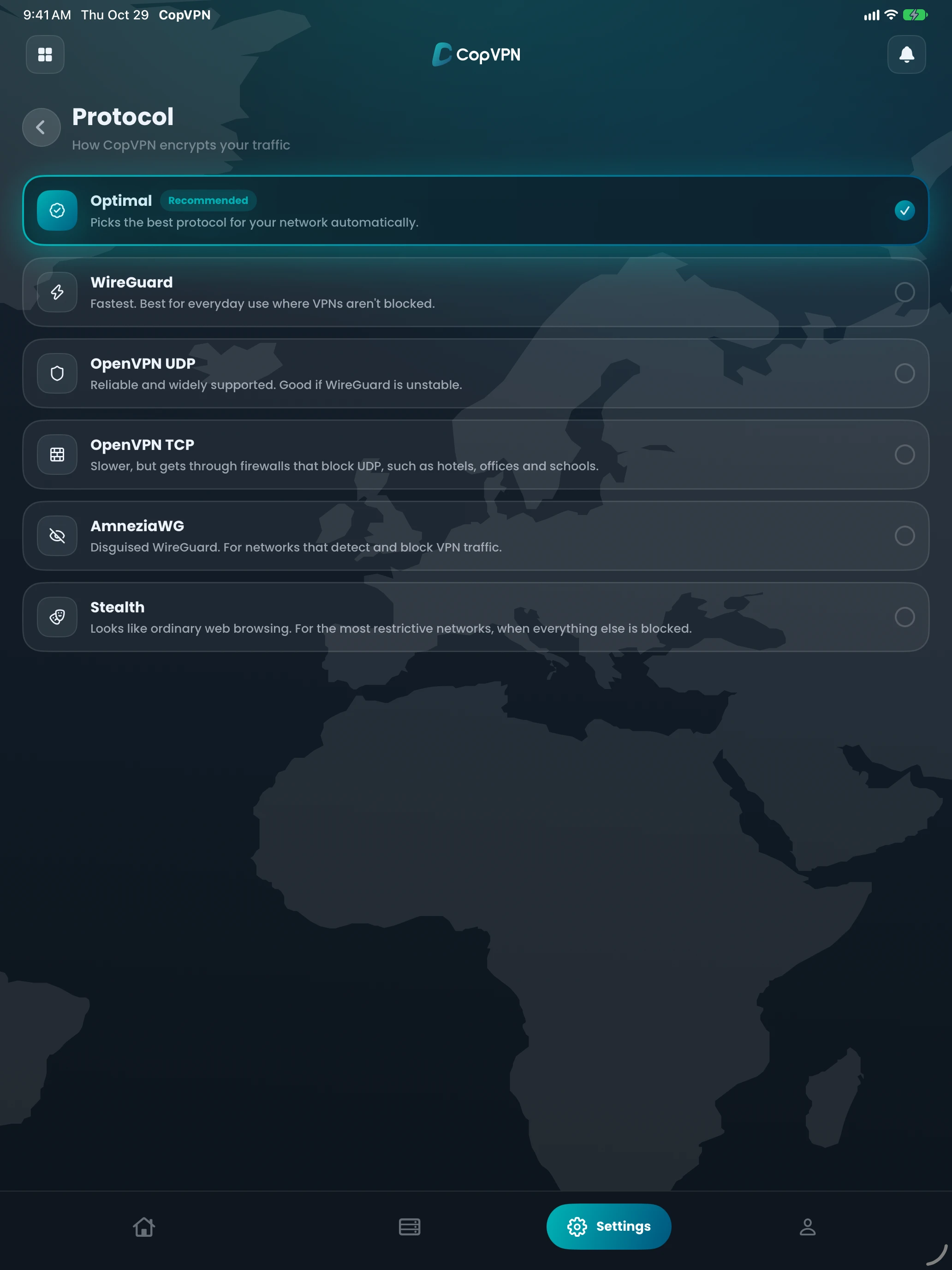
OpenVPN TCPSlower, but gets through firewalls that block UDP, such as hotels, offices and schools.

Pick it in Settings › Protocol, or leave the app on Optimal (“Picks the best protocol for your network automatically.”). You can choose any of the 5 protocols.

AvailableCompare the 5 protocols

17:30Home Wi-FiOn iPhone

Back on Wi-Fi you trust

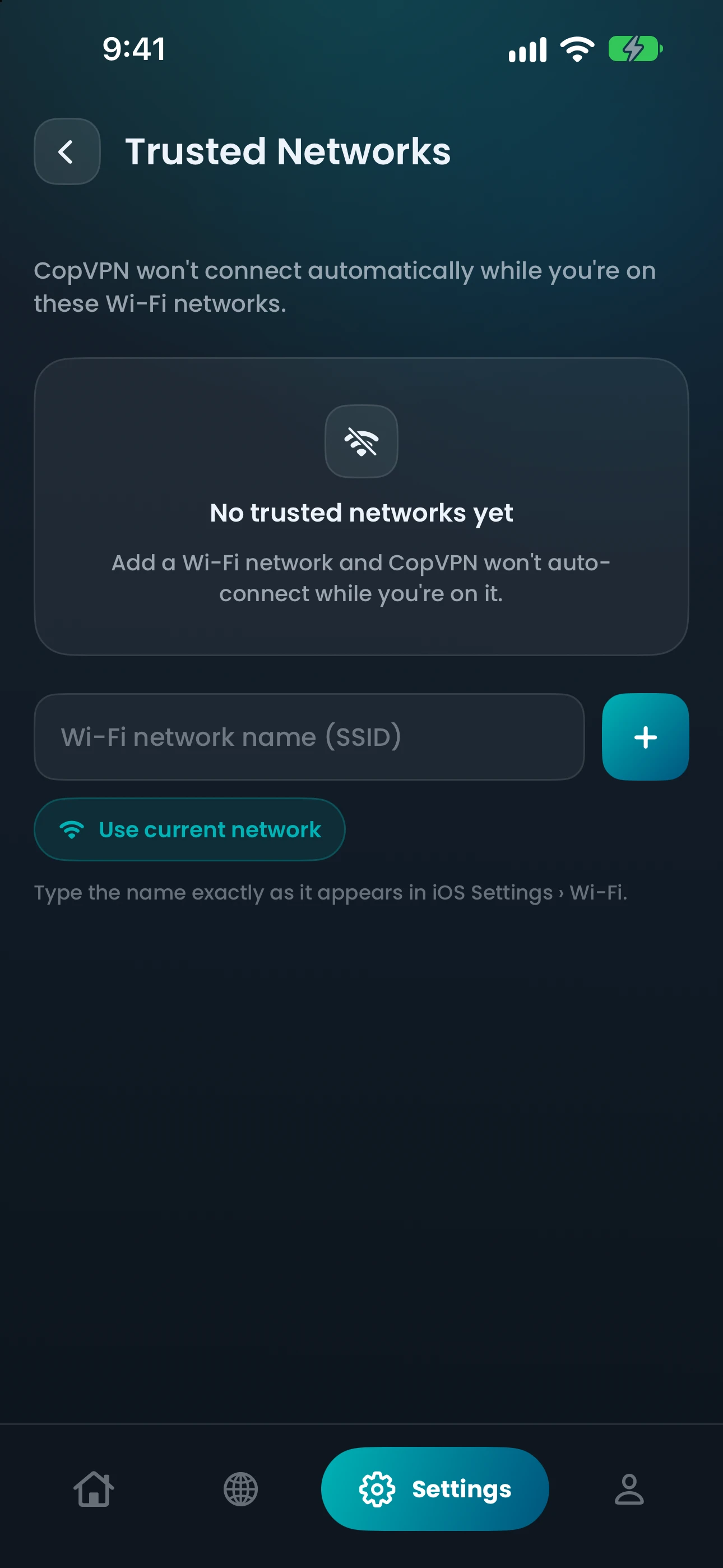
Trusted networksSkip auto-connect on Wi-Fi you trust

Type your home network’s name, or tap “Use current network”, and Auto-connect leaves that Wi-Fi alone. Trusted networks work with Auto-connect.

AvailableSet up trusted networks

20:00On the sofaOn iPad

Browsing on the iPad

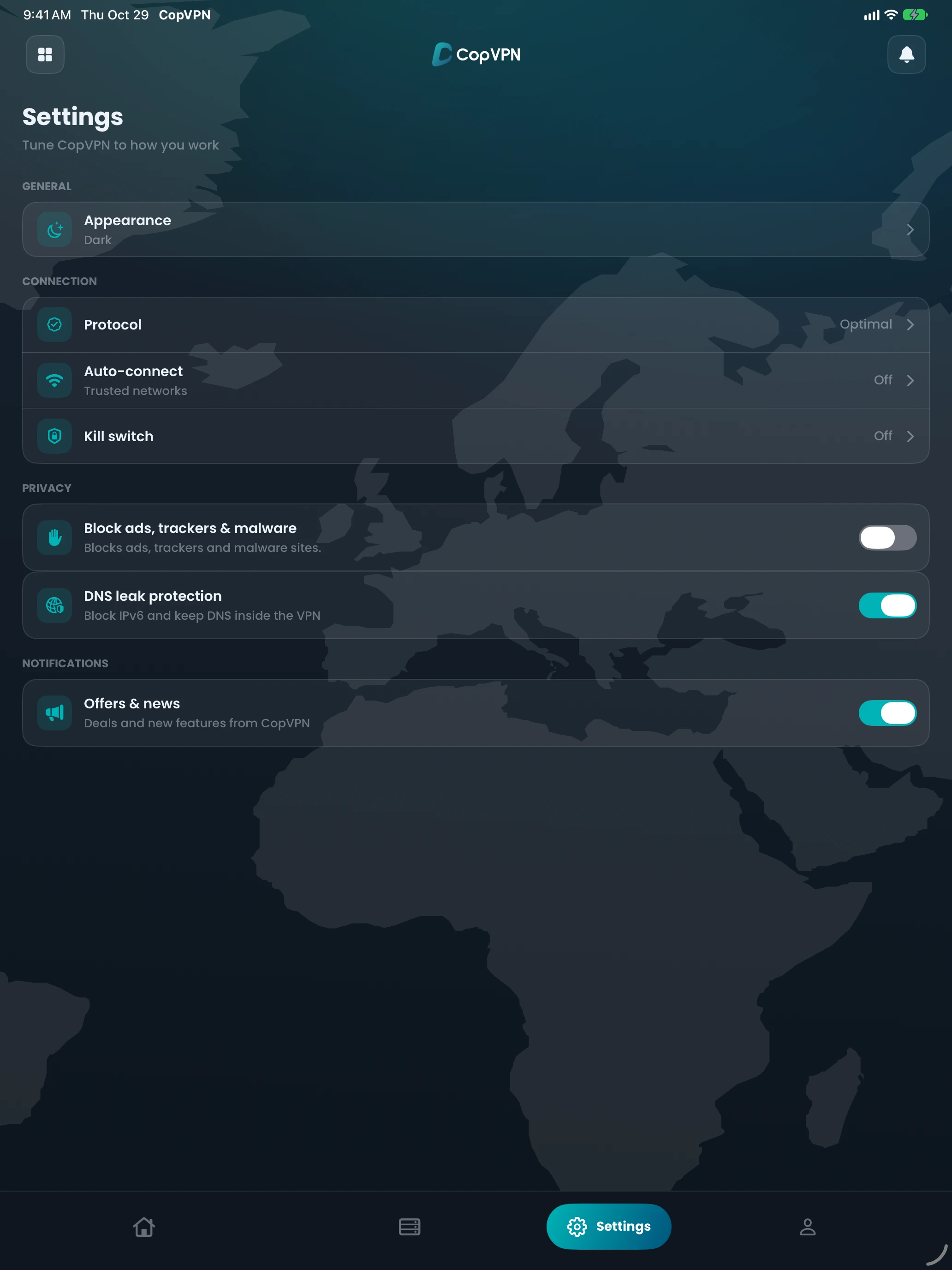
Block ads, trackers & malwareBlocks ads, trackers and malware sites.

It blocks known ad, tracking and malware sites on the device; you choose when it’s on. It isn’t antivirus and doesn’t scan files. Just below it, DNS leak protection is on by default.

AvailableWhat the ad blocker blocks

23:00Late check-inOn iPhone

Hotel Wi-Fi that blocks VPNs

StealthLooks like ordinary web browsing. For the most restrictive networks, when everything else is blocked.

If OpenVPN TCP doesn’t get through, try AmneziaWG (“Disguised WireGuard. For networks that detect and block VPN traffic.”) or Stealth.

AvailableHow Stealth works

1 / 6
CopVPN iPhone Settings, with the Kill Switch row: Blocks the internet if the VPN drops

iPhone · Settings

The CopVPN iPad Auto-connect screen: Connect when joining an untrusted network, with trusted networks below

iPad · Auto-connect

The CopVPN iPad protocol list, with OpenVPN TCP: Slower, but gets through firewalls that block UDP

iPad · Protocol

The CopVPN iPhone Trusted Networks screen: a field for a Wi-Fi network name, and Use current network

iPhone · Trusted Networks

CopVPN iPad Settings: Block ads, trackers & malware, and DNS leak protection switched on

iPad · Settings

The CopVPN iPhone protocol list, with Stealth: Looks like ordinary web browsing

iPhone · Select Protocol

Midday · free or with a plan

What the iOS VPN app does, with and without a plan

No plan is needed to install the app and connect to the free locations. Flip the switch to see what a plan adds on iPhone and iPad.

Without a plan: the free locations.With a plan: every location in 65+ countries and the Specialty servers too.

  • Buy a plan in the app or at our checkout. Either way it’s saved to your CopVPN account and unlocks every CopVPN app you sign in to.
  • At our checkout: 30-day money-back guarantee. In the app, the App Store bills and refunds the plan.

Locations

  • Free locationsConnect without a planIncluded
  • Every location85+ locations in 65+ countriesWith a planIncluded
  • SpecialtyStreaming, Gaming and P2P Torrenting groupsWith a planIncluded

Connection

  • ProtocolOptimal with Smart Connect, or any of the 5 protocolsChoose Optimal and Smart Connect tries another protocol by itself if one can’t connect.
  • Kill SwitchBlocks the internet if the VPN dropsOn iPad: “Kill switch”, “Block traffic if the VPN drops”
  • Auto-connectProtect untrusted Wi-Fi automaticallyOn iPad: “Connect when joining an untrusted network”
  • Trusted networksSkip auto-connect on Wi-Fi you trustWorks with Auto-connect

Privacy

  • Block ads, trackers & malwareBlocks ads, trackers and malware sites.
  • DNS leak protectionBlock IPv6 and keep DNS inside the VPNOn by default

Not on iPhone or iPad

  • Split tunnelingIn the Android app onlyNot on iOS

Late afternoon · set it up

From the App Store to connected in four steps

The same four steps on iPhone and iPad. Use one account on as many devices as you like.

  1. 1

    Download on the App Store

    Open the CopVPN listing and install it. It’s one app for iPhone and iPad, for iOS or iPadOS 16 or later.

    iPhone · iOS 16 or later
    iPad · iPadOS 16 or later

    Download on the App Store
  2. 2

    Sign in without a password

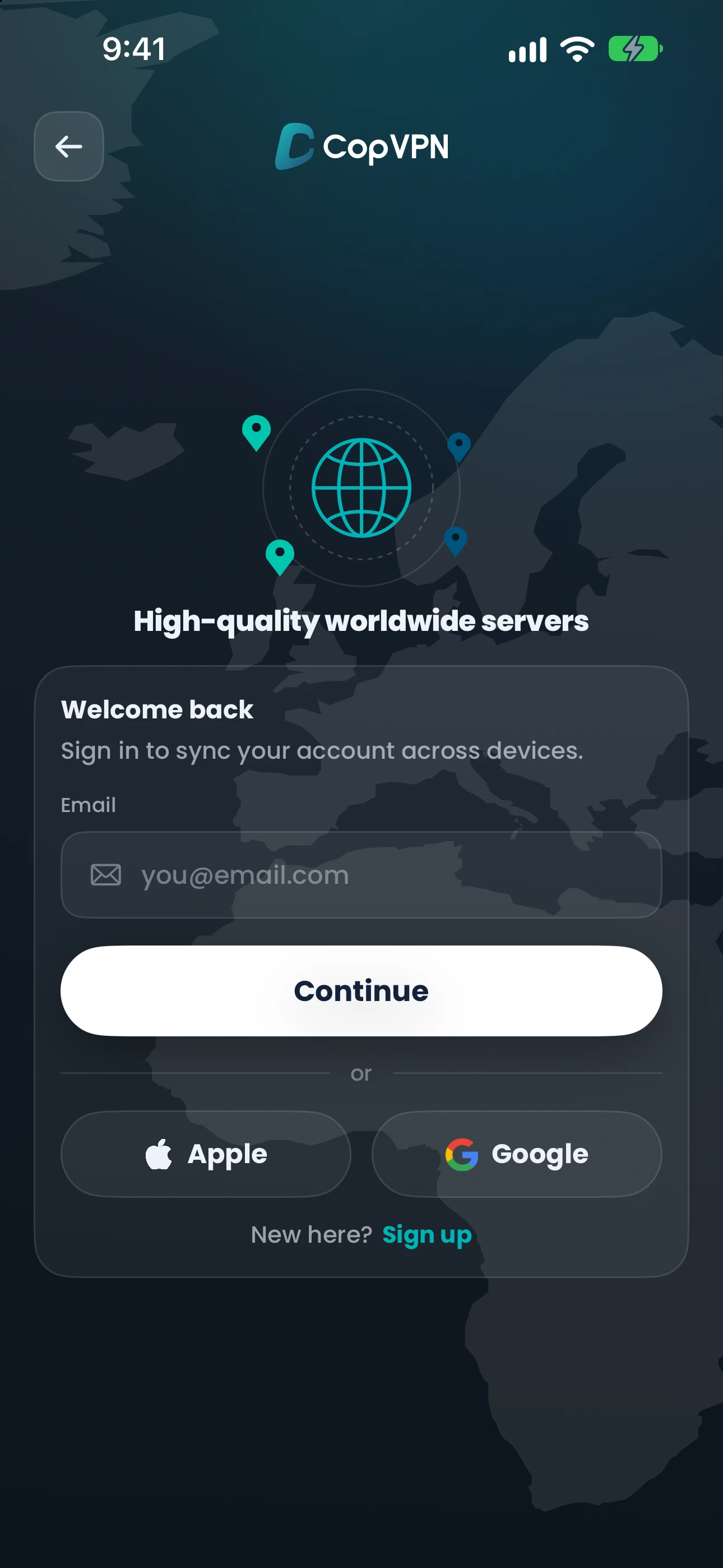
    Use your email and a 6-digit code, or Apple or Google. There’s no password to create or forget.

    The CopVPN iPhone sign-in screen: an email field with Continue, and Apple and Google buttons
  3. 3

    Pick a location

    Tap the location card on Home to choose one. Without a plan, pick a free location; with a plan, every location and the Specialty servers.

    The CopVPN iPhone Home screen, with the chosen location, Germany, Nuremberg
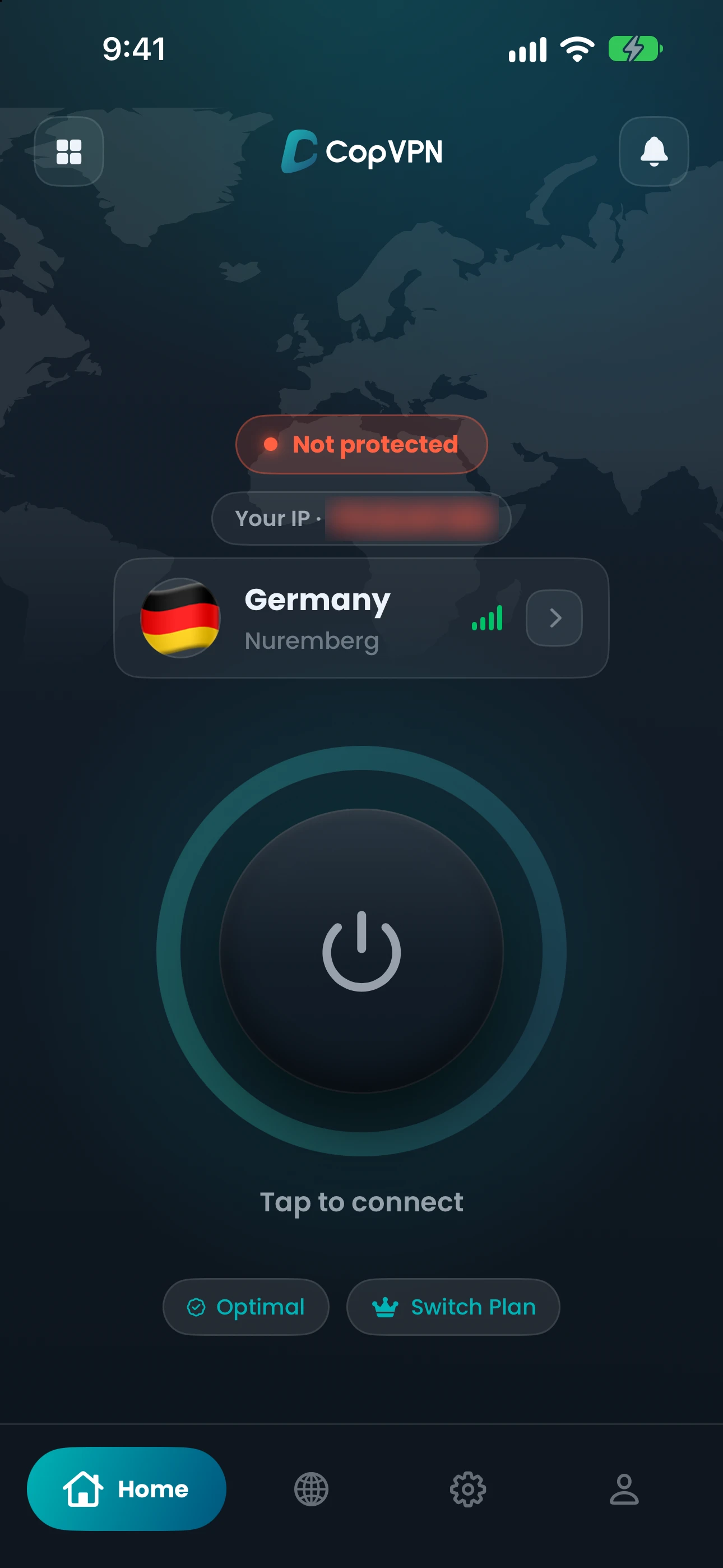
  4. 4

    Tap to connect

    The first time you connect, iOS (iPadOS on iPad) asks to add a VPN configuration. Allow it once.

    The CopVPN iPhone Home screen before connecting: Not protected, with the power button and Tap to connect

Evening · your other devices

The same account on your Mac, PC, Android and browser

Sign in on as many devices as you like. A plan covers every CopVPN app on the account.

Unlimited devices

One account for all of them: sign in on your iPhone and iPad, then on every other device you own.

How unlimited devices work

Every app on one page: download CopVPN for all your devices.

Night · questions

Frequently asked questions

Still stuck?

Our support team answers by email:

contact@copvpn.com

Is CopVPN a VPN for iPad as well as iPhone?

Yes. It’s one app on the App Store for iPhone and iPad, for iOS or iPadOS 16 or later. Sign in with the same account on both.

Can I use the iPhone VPN app without a plan?

Yes. Without a plan, the iPhone and iPad app connects to the free locations. A plan opens every location and the Specialty servers.

Is there a free trial?

There’s no free trial. Instead, every CopVPN app connects to our free locations without a plan, so you can try it on your own devices first. Every plan also comes with a 30-day money-back guarantee.

How many devices can I use with CopVPN?

As many as you like. Install CopVPN on your phones, tablets, computers and Android TV, and sign in to each one with the same account.

Is there a CopVPN app for Mac?

Yes, on the Mac App Store, for macOS 14 or later. It runs on Intel and Apple silicon Macs and connects to the free locations without a plan.

Your connection right now

This is what websites see

Any site you open can read your IP address and roughly where you are. Connect CopVPN and they see one of our servers instead.