Android TV app
Download a VPN for Android TV
CopVPN on Android TV and Google TV comes from Google Play and connects to the free locations without a plan. Its TV interface has 5 protocols, auto-connect and DNS leak protection, and you run all of it from the sofa with the remote.
Without a plan, the TV app connects to the free locations. A plan opens every location. A plan bought at our checkout, in the App Store, the Mac App Store or Google Play is saved to your CopVPN account and unlocks every CopVPN app signed in with it.
- Android TV or Google TV
- Android 7.0 or later
- Google Play on the TV
- A CopVPN account
- Latest version
CH03HomeOKConnect
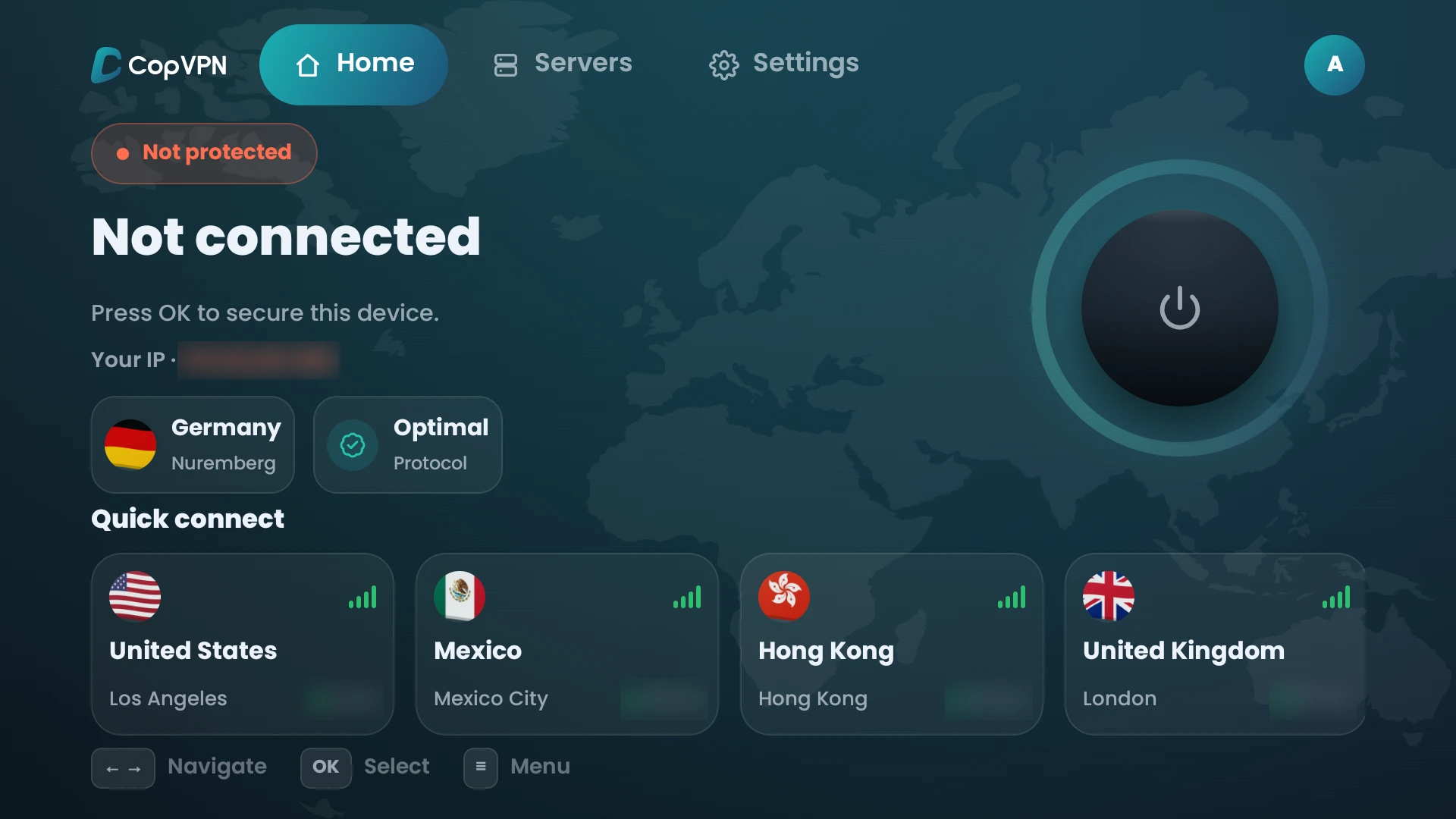
Not connected. “Press OK to secure this device.”
Try the remote
Setup guide
How to set up a VPN for Android TV: four steps to go
The whole path, laid out like your TV’s programme guide. Pick a step to see what to do, and where.
Step 1 · On your phone or computer
Choose a plan
Without a plan, the TV app connects to the free locations. A plan opens every location. There’s no free trial. Plans run from 1 month to 5 years. A plan bought at our checkout, in the App Store, the Mac App Store or Google Play is saved to your CopVPN account and unlocks every CopVPN app signed in with the same account.
Step 2 · On your TV
Install from Google Play
On your TV, open Google Play, find CopVPN and install it. It’s the same Google Play listing as the Android phone app, and it needs Android 7.0 or later.
Step 3 · On your phone or computer
Open the code email
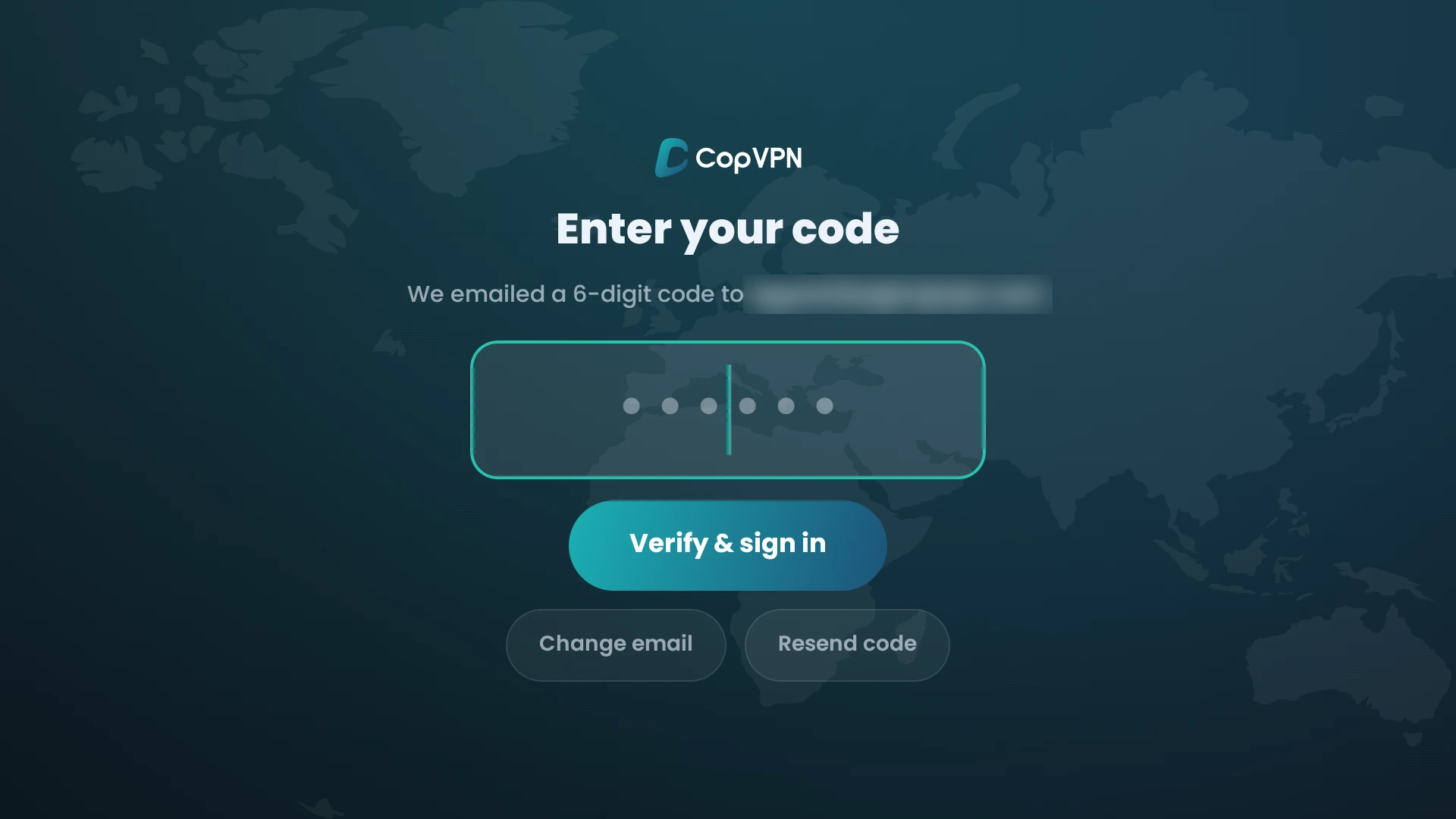
When you sign in on the TV, we email you a 6-digit code. Open it on your phone or computer, whichever is closer. Don’t share the code with anyone.
Step 3 · On your TV
Sign in with the remote
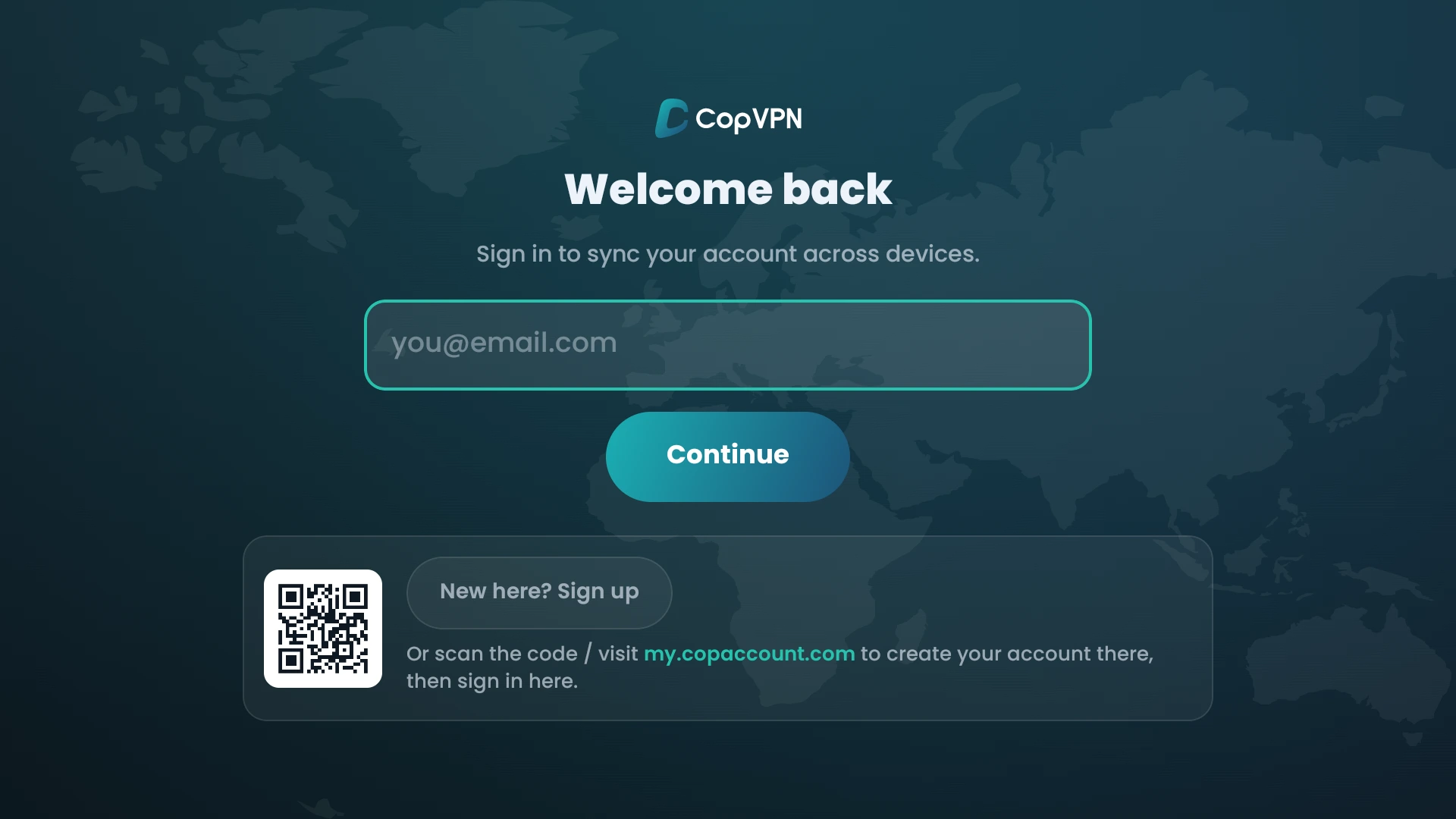
Type your email, then the 6-digit code, and choose Verify & sign in. There’s no password. New here? The sign-in screen has a QR code: scan it, or visit my.copaccount.com, to create your account there.
Step 4 · On your TV
Press OK
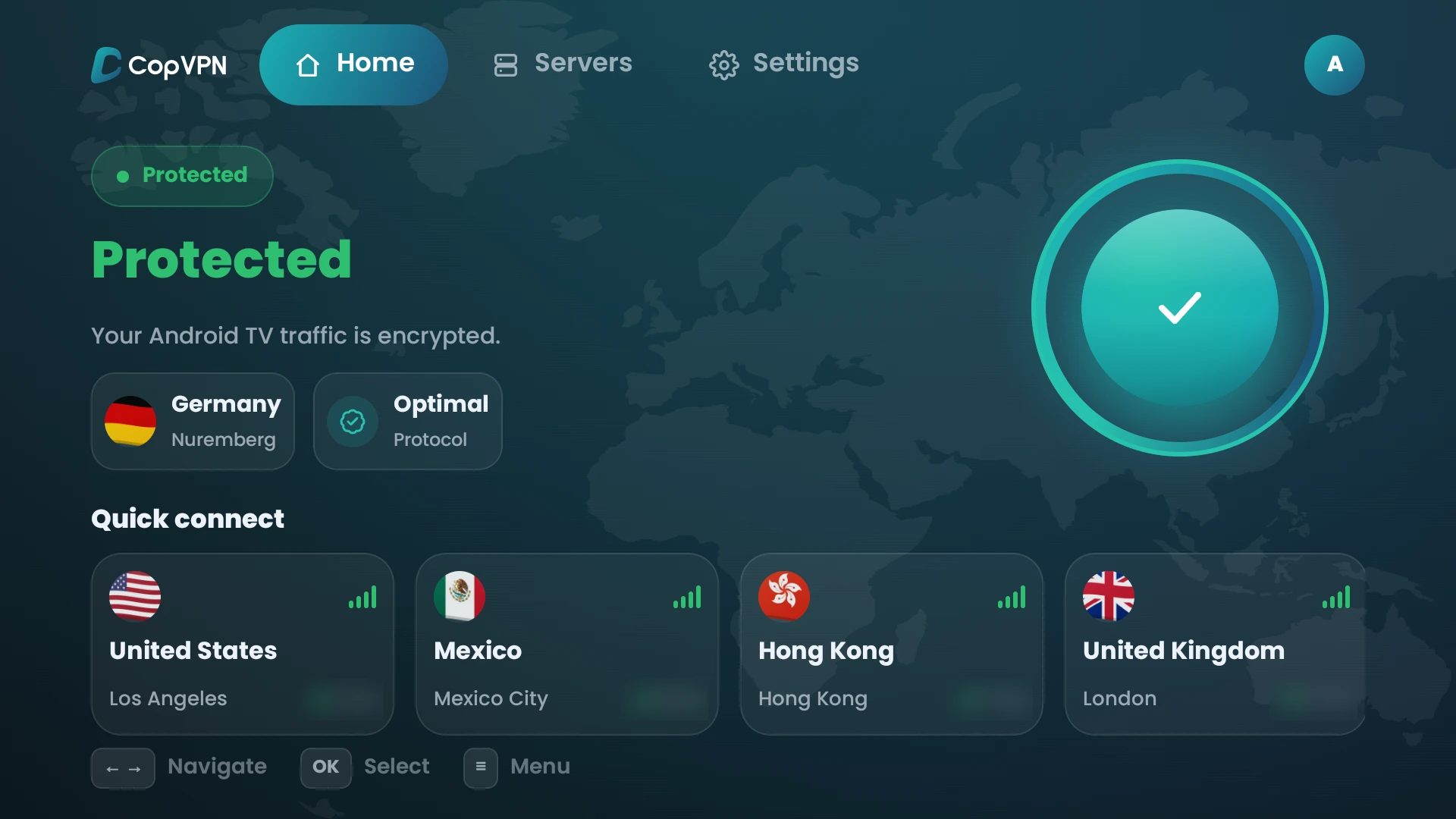
Home says “Press OK to secure this device.” Press OK on the remote, and it says Protected: “Your Android TV traffic is encrypted.”
Step 1 · Plan
Step 2 · Install
Step 3 · Sign in
Step 4 · Connect
On your phone or computer
On your TV
Inside the TV app
Three settings, readable from the sofa
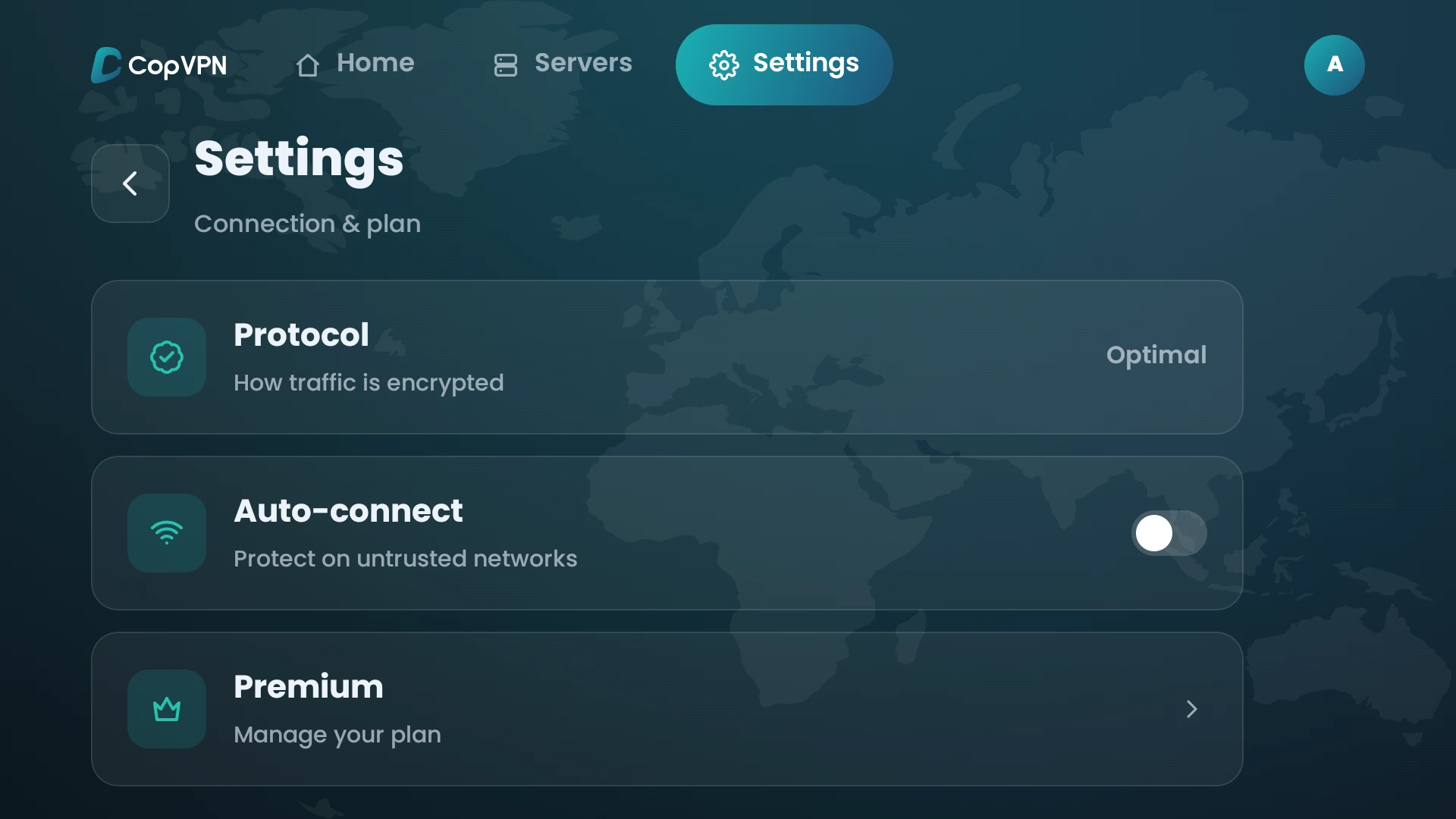
Home, Servers and Settings sit across the top of the screen, and on-screen hints show which remote button does what. Settings keeps to three rows.
DNS leak protection Always on
It’s on in the TV app all the time, with no switch to forget.
Protocol
“How traffic is encrypted”
The same picker as the phone: 5 protocols, with Optimal as the automatic choice. Choose Optimal and Smart Connect tries another protocol by itself if one can’t connect.
Auto-connect
“Protect on untrusted networks”
On TV, it connects to the last server when the app opens. You choose whether it’s on.
Premium
“Manage your plan”
Your plan, billing and connected devices are in your account at my.copaccount.com.
Pick from 85+ locations in 65+ countries in the Servers tab, or from Quick connect on Home. With a plan, the Servers tab also has the Specialty servers: Streaming, Gaming and P2P Torrenting. See the server list
Pick a VPN protocol with the remote
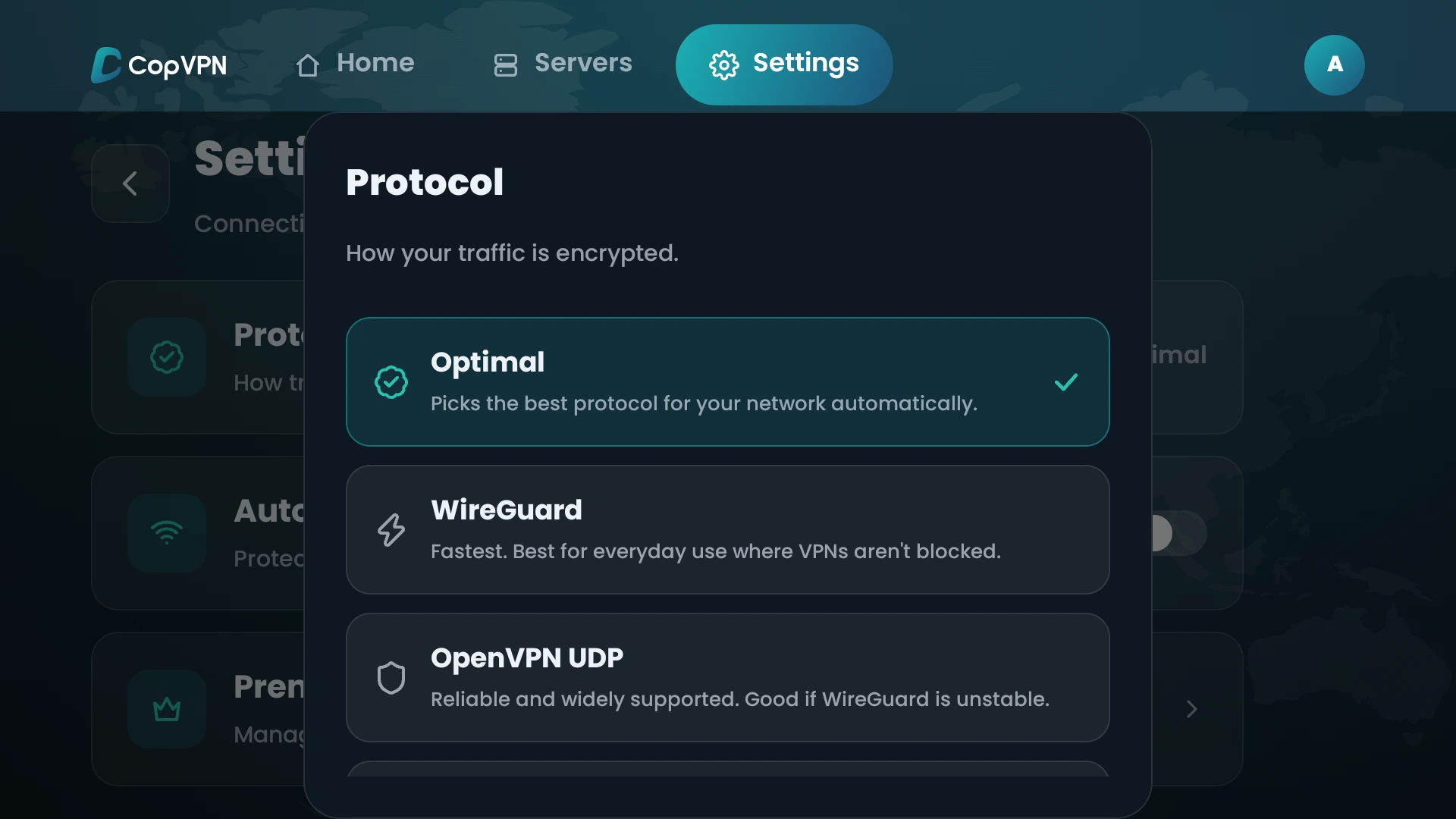
5 protocols: WireGuard, OpenVPN UDP, OpenVPN TCP, AmneziaWG and Stealth. Optimal is the automatic choice.
OptimalAutomatic
Picks the best protocol for your network automatically.
WireGuard
Fastest. Best for everyday use where VPNs aren’t blocked.
OpenVPN UDP
Reliable and widely supported. Good if WireGuard is unstable.
OpenVPN TCP
Slower, but gets through firewalls that block UDP, such as hotels, offices and schools.
AmneziaWG
Disguised WireGuard. For networks that detect and block VPN traffic.
Stealth
Looks like ordinary web browsing. For the most restrictive networks, when everything else is blocked.
Want a Kill Switch, Split tunneling or Block ads, trackers & malware too? They’re in the CopVPN app for Android phones and tablets.
Unlimited devices
Switch input: one account on your other screens
Sign in to CopVPN on the TV, your phone and your laptop with the same account. It works on unlimited devices.
Questions
Frequently asked questions
Our support team answers by email:
contact@copvpn.comIs there a free version of CopVPN for Android TV?
Yes. The Android TV app connects to the free locations without a plan. There’s no free trial. Plans run from 1 month to 5 years, with a 30-day money-back guarantee.
Where do I download CopVPN for Android TV?
From Google Play on your TV. It’s the same Google Play listing as the Android phone app, and it needs Android 7.0 or later.
Does CopVPN work on Google TV?
Yes. The app is in Google Play for TV devices, and Google TV uses that Play store, so you install it the same way on Android TV and Google TV: open Google Play on the TV, find CopVPN and install it. It needs Android 7.0 or later.
Which protocols does the Android TV app have?
The same picker as the phone: 5 protocols, WireGuard, OpenVPN UDP, OpenVPN TCP, AmneziaWG and Stealth. Optimal is the automatic choice: it “Picks the best protocol for your network automatically.”
What does Auto-connect do on Android TV?
Auto-connect, “Protect on untrusted networks”, connects to the last server when the app opens. You choose whether it’s on, in Settings.
Does the TV app have a kill switch or ad blocking?
No. The TV app keeps to three settings, Protocol, Auto-connect and Premium, and DNS leak protection is always on. The CopVPN app for Android phones and tablets also has a Kill Switch, Split tunneling and Block ads, trackers & malware.
How do I sign in on a TV without a keyboard?
Type your email with the remote, then the 6-digit code we email you. There’s no password. New here? Scan the QR code on the sign-in screen, or visit my.copaccount.com, to create your account, then sign in on the TV.
How many devices can I use with CopVPN?
As many as you like. Install CopVPN on your phones, tablets, computers and Android TV, and sign in to each one with the same account.
Can I use the same plan on my TV and my phone?
Yes. A plan bought at our checkout, in the App Store, the Mac App Store or Google Play is saved to your CopVPN account and unlocks every CopVPN app signed in with the same account, the TV included. Store plans are billed and refunded by the store.
Your connection right now
This is what websites see
Any site you open can read your IP address and roughly where you are. Connect CopVPN and they see one of our servers instead.
- Your IP
- Location
- Provider